No Scripting Guide
Two things: install the plugin, then let the Quick Start build your sea. Nothing is typed, and the whole thing takes about two minutes.
1. Install the plugin
- Get Infinite Ocean from the Creator Store.
- In Studio, open the Plugins tab, press Manage Plugins and make sure Infinite Ocean is enabled.
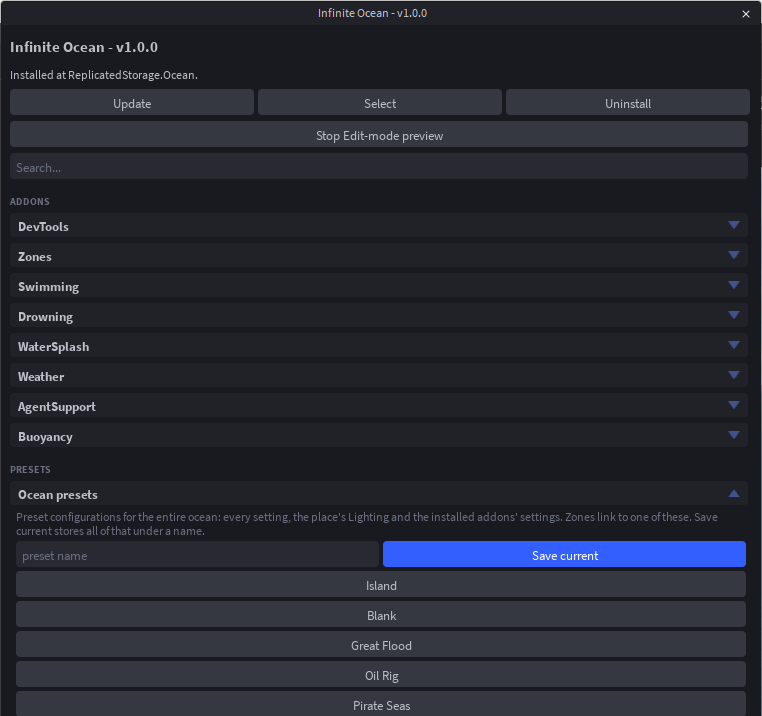
- Press the Infinite Ocean button in the Plugins toolbar to open the panel. The first time, read and accept the licence agreement.
2. Run the Quick Start
With no ocean in the place, the panel opens on the Quick Start. Press Dynamic Ocean (or Flat Ocean for a still, flat sea). It installs the module and then asks three questions.
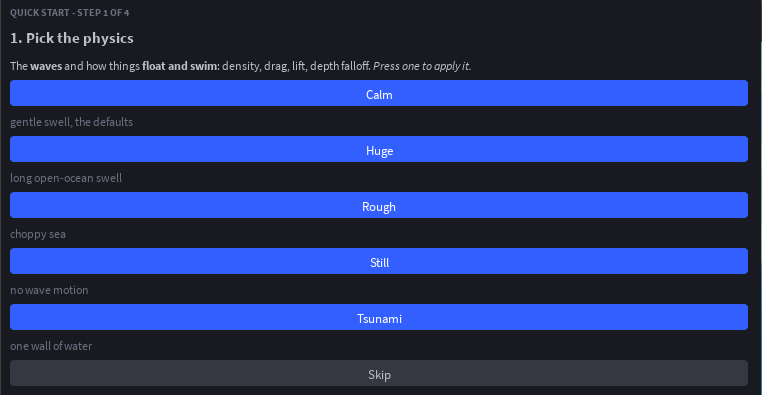
Pick the physics. Calm is a gentle swell (the default), Rough is choppy, Huge is a long open-ocean swell, Tsunami is one wall of water, Still has no motion. Pressing one applies it and moves on. Not sure? Press Calm.
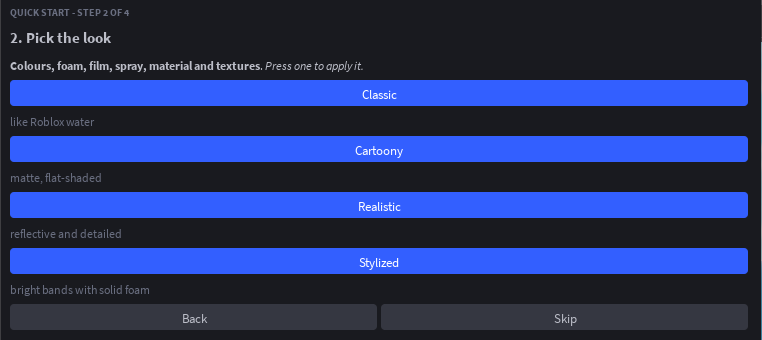
Pick the look. Classic is like Roblox water, Cartoony is matte and flat, Stylized is bright bands with solid foam, Realistic is reflective and detailed. Not sure? Press Classic.
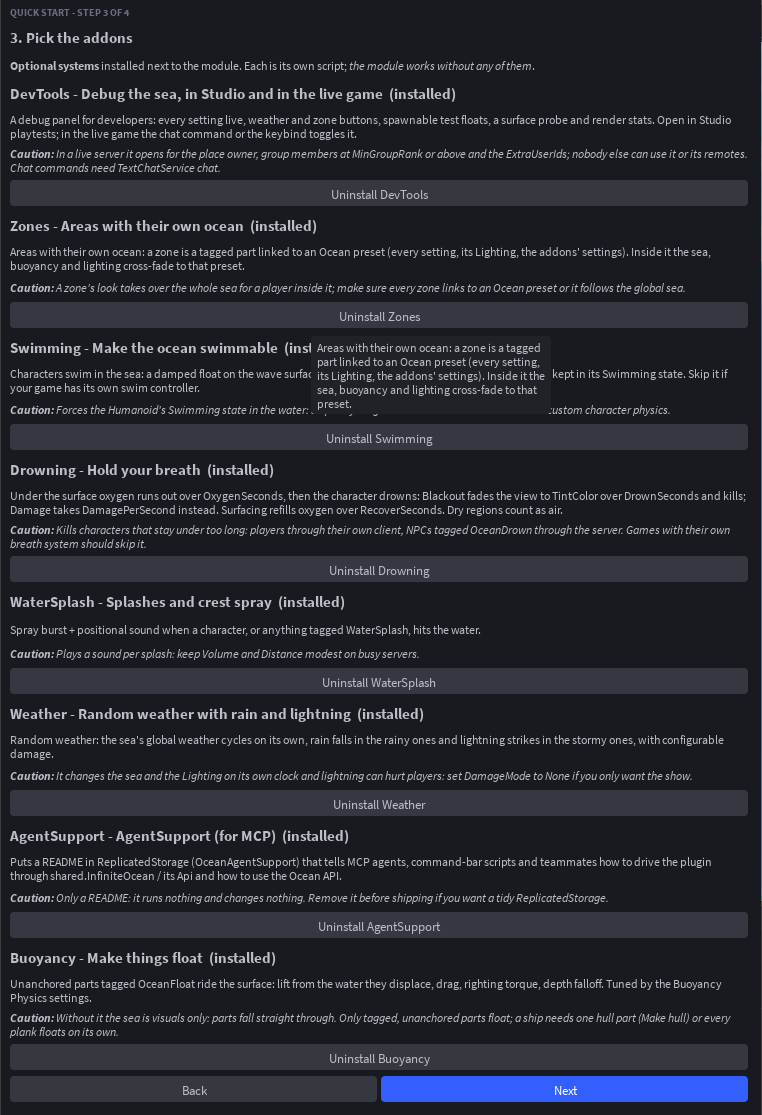
Pick the addons. Tick what your game needs and press Next. For most games that is:
- Buoyancy: anything tagged
OceanFloatfloats and rocks on the waves. - Swimming: characters swim when they walk into the water.
- DevTools: a debug panel in playtests (press F8 or type
/oceanin chat).
Drowning, WaterSplash, Weather (rain, lightning, thunder) and Zones are there too. You can add or remove any addon later from More > Addons.
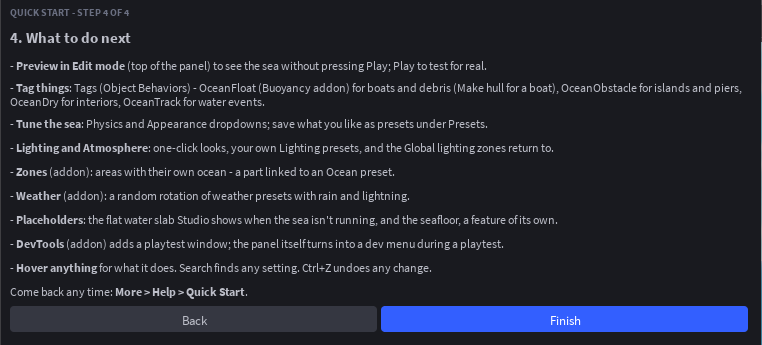
Finish. The Edit-mode preview starts and the sea appears around the camera. It is drawn under the camera, not in the workspace, so nothing extra is saved into the place and Team Create teammates never see it. Stop Edit-mode preview at the top of the panel turns it off.
The dynamic sea is drawn on an EditableMesh, which the experience has to allow in its Experience Settings. If it is not allowed, the panel says so when you pick Dynamic Ocean: turn it on and pick Dynamic Ocean again, or press Continue to set up a Flat Ocean instead. Flat Ocean needs no permission.
3. Press Play
That is a working sea. Press Play: the water moves, characters swim if you installed Swimming, and anything you tag OceanFloat floats. Everything the Quick Start chose is a slider in the panel, and every slider has a hint under it.
Where next
- Change the whole sea in one press: open Presets and try Island, Pirate Seas, Oil Rig, Great Flood or Blank. Each also sets Lighting and Atmosphere. See Presets.
- Make the water respect your map: the tutorial adds an island the waves calm around, a boat that floats and a storm, all from the panel.
- Every panel section explained: the plugin guide.
- Storms on a timer, or a script that asks where the surface is: the Advanced Guide.